Features
A quick tour of what Cabinet Designer can do.
Scene Page
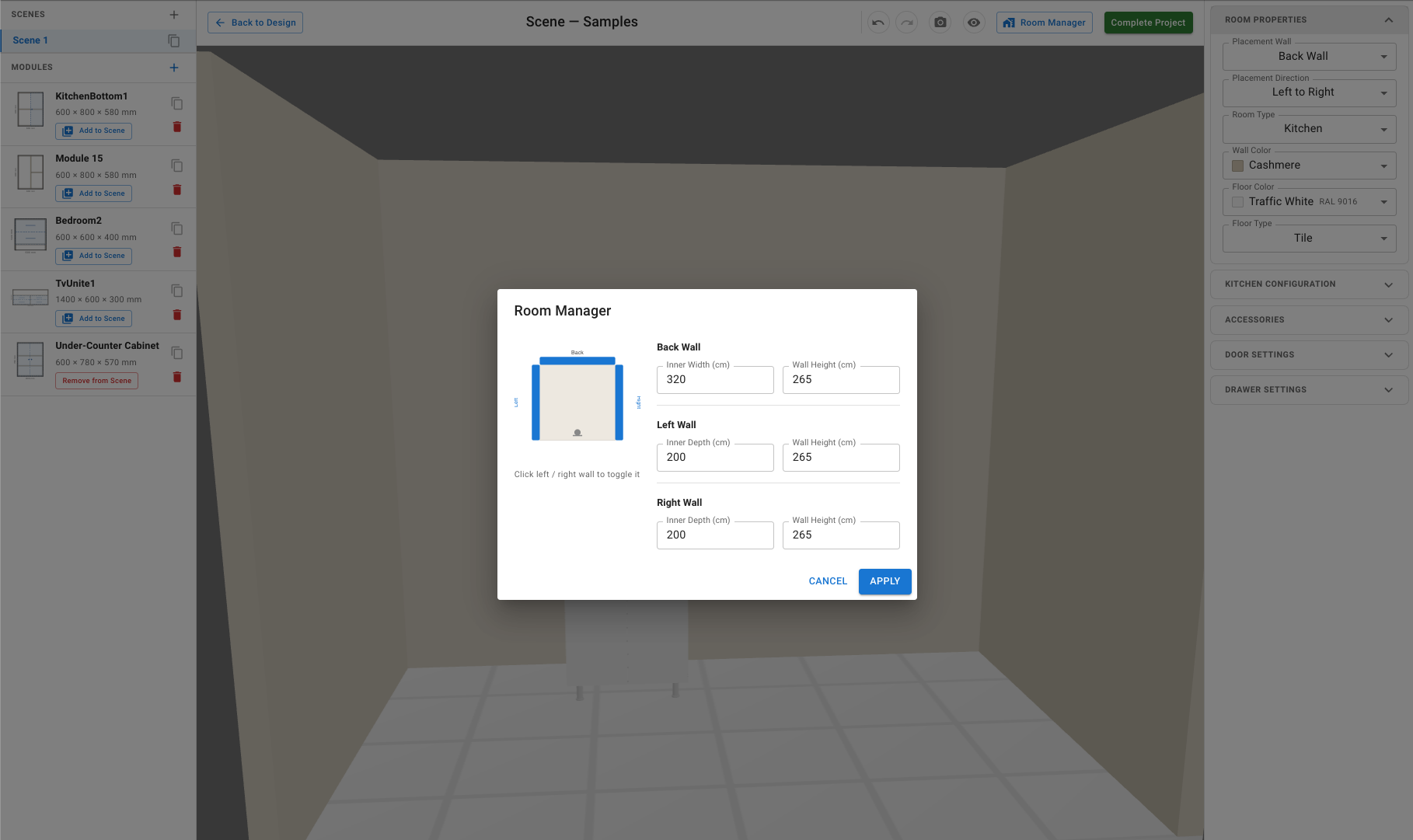
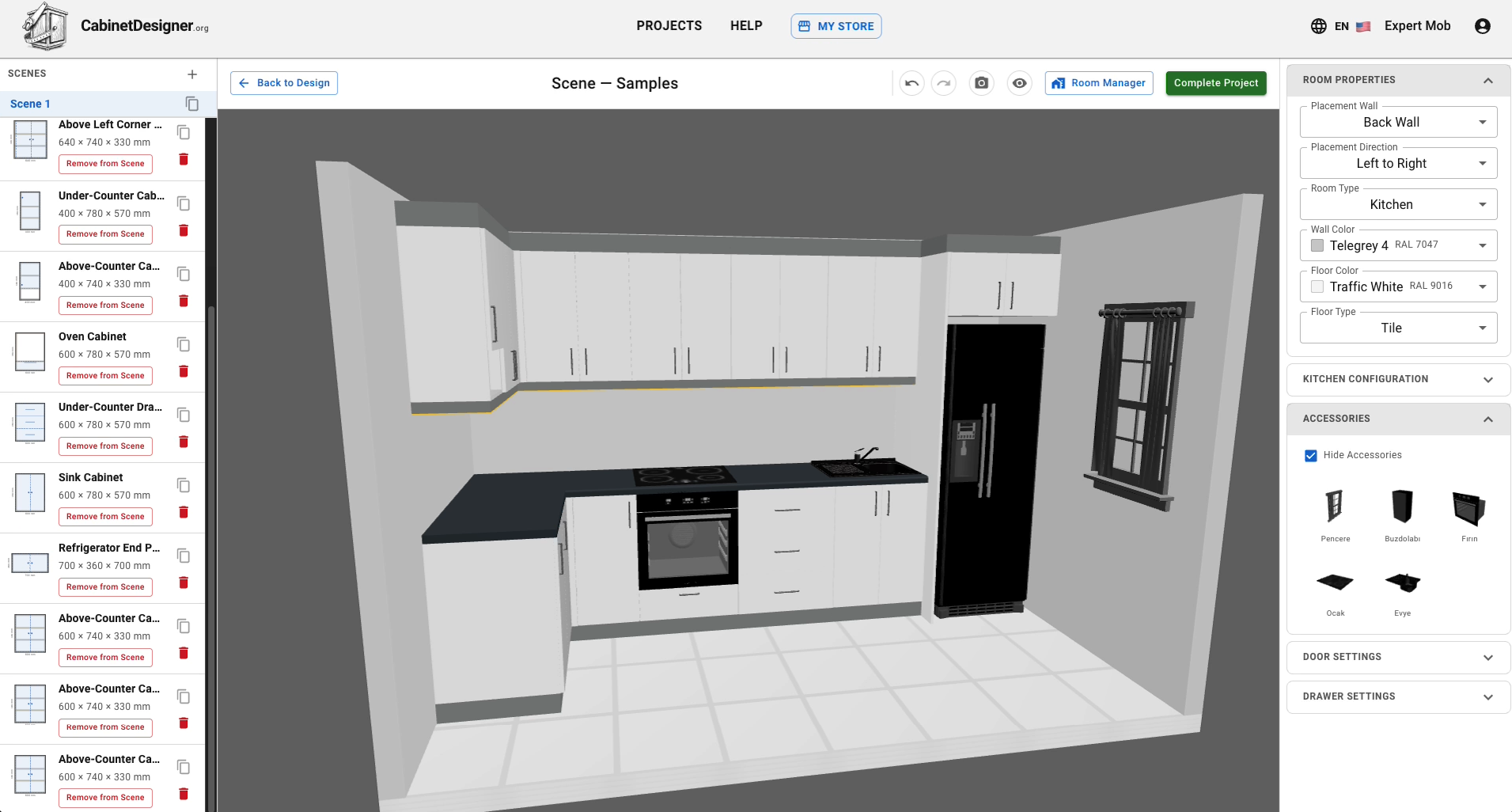
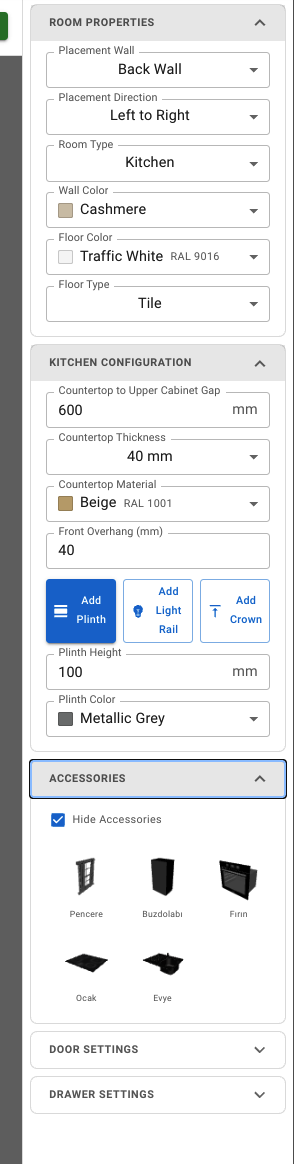
The Scene page is where you view and arrange your 3D scene. Here you can see all the cabinets you've designed so far and make changes to them. You can add modules to the scene either by dragging and dropping or through the menus.
Before placing modules in the scene, the first step is entering your room dimensions in the Room Manager. You can add just the back wall, only the left or right wall, or all three walls together. If you'd like to try different layouts with the same modules, you can create new scenes to explore alternative arrangements.
You can select modules in the scene to resize, rotate, duplicate, or delete them. Open and close doors to inspect the interior, shelves and drawers. View the scene from any angle and zoom in, and apply different colors and materials to modules to visualize your design realistically. Every change you make is saved automatically, so you can pick up right where you left off at any time.
You can watch the tutorial videos below for scene examples:
Designer Page
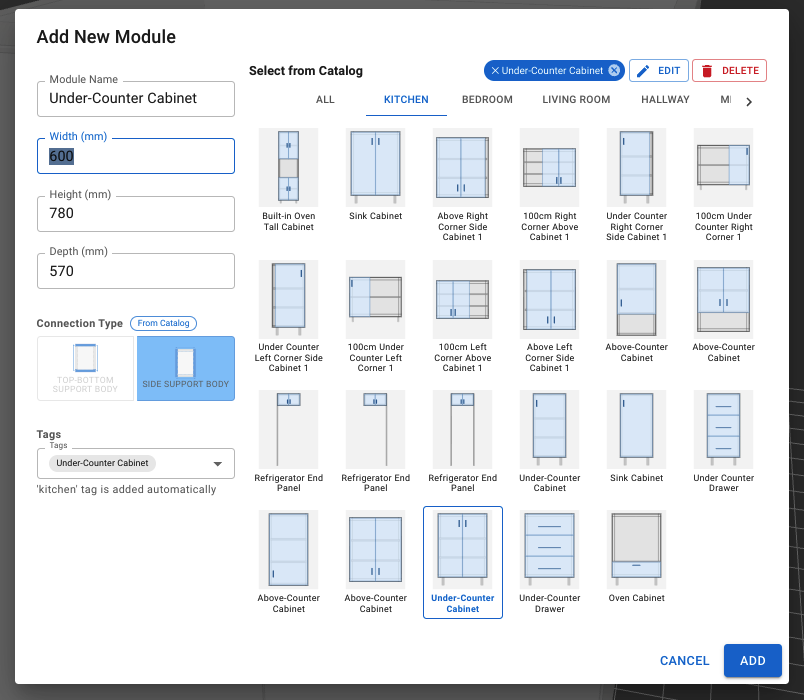
The Designer page is your main workspace for building cabinets from scratch. Pick a ready-made module from the catalog and adjust its dimensions to your needs, seeing the result instantly in 3D. Add as many doors and drawers as you like to arrange the interior exactly how you want it.
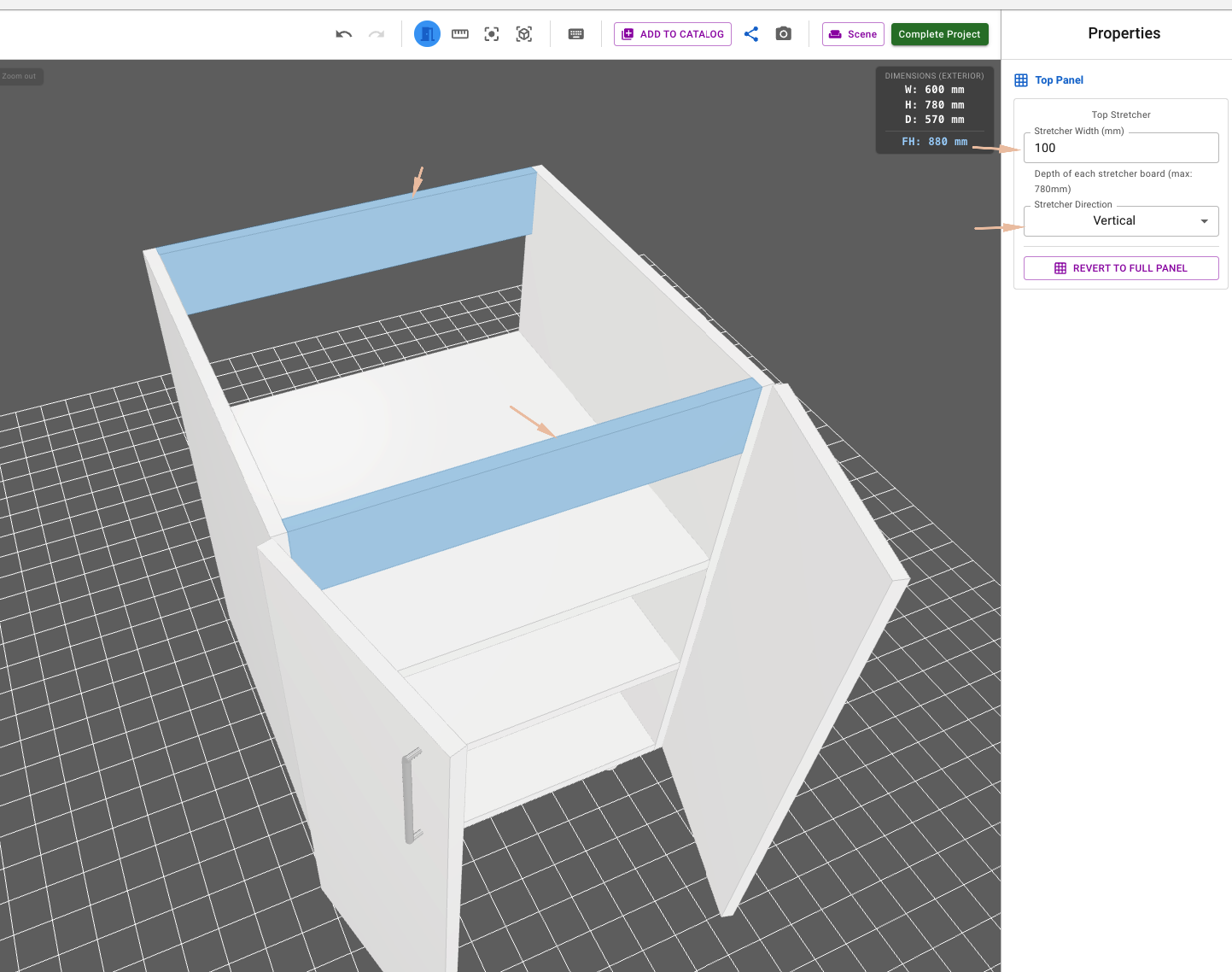
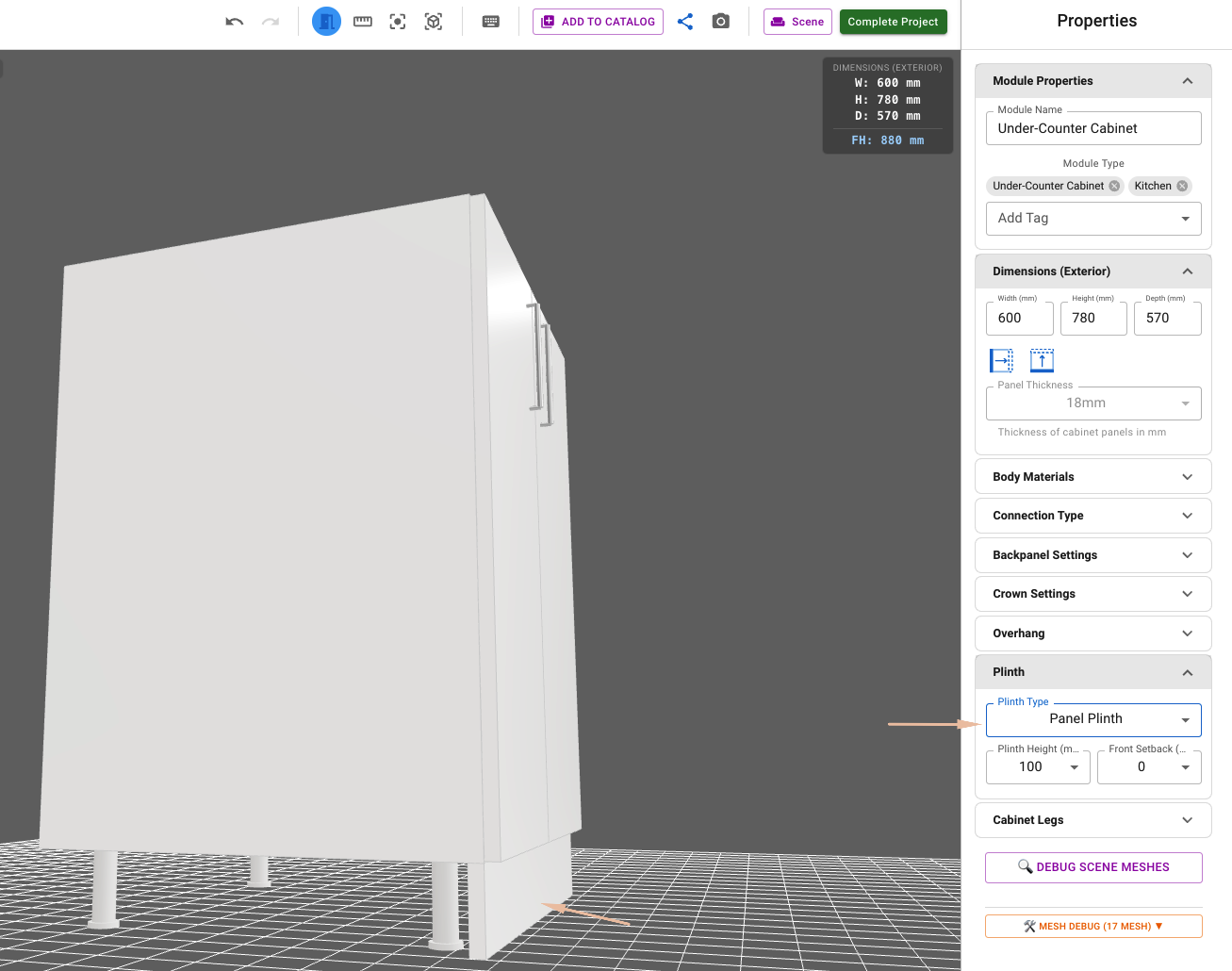
When designing kitchen cabinets, add a top stretcher and a back stretcher to build base and wall units the way they're actually manufactured. Blind panels make it easy to build corner cabinets, and you can choose between leg-mounted or plinth (base) support depending on your needs.
Parts List
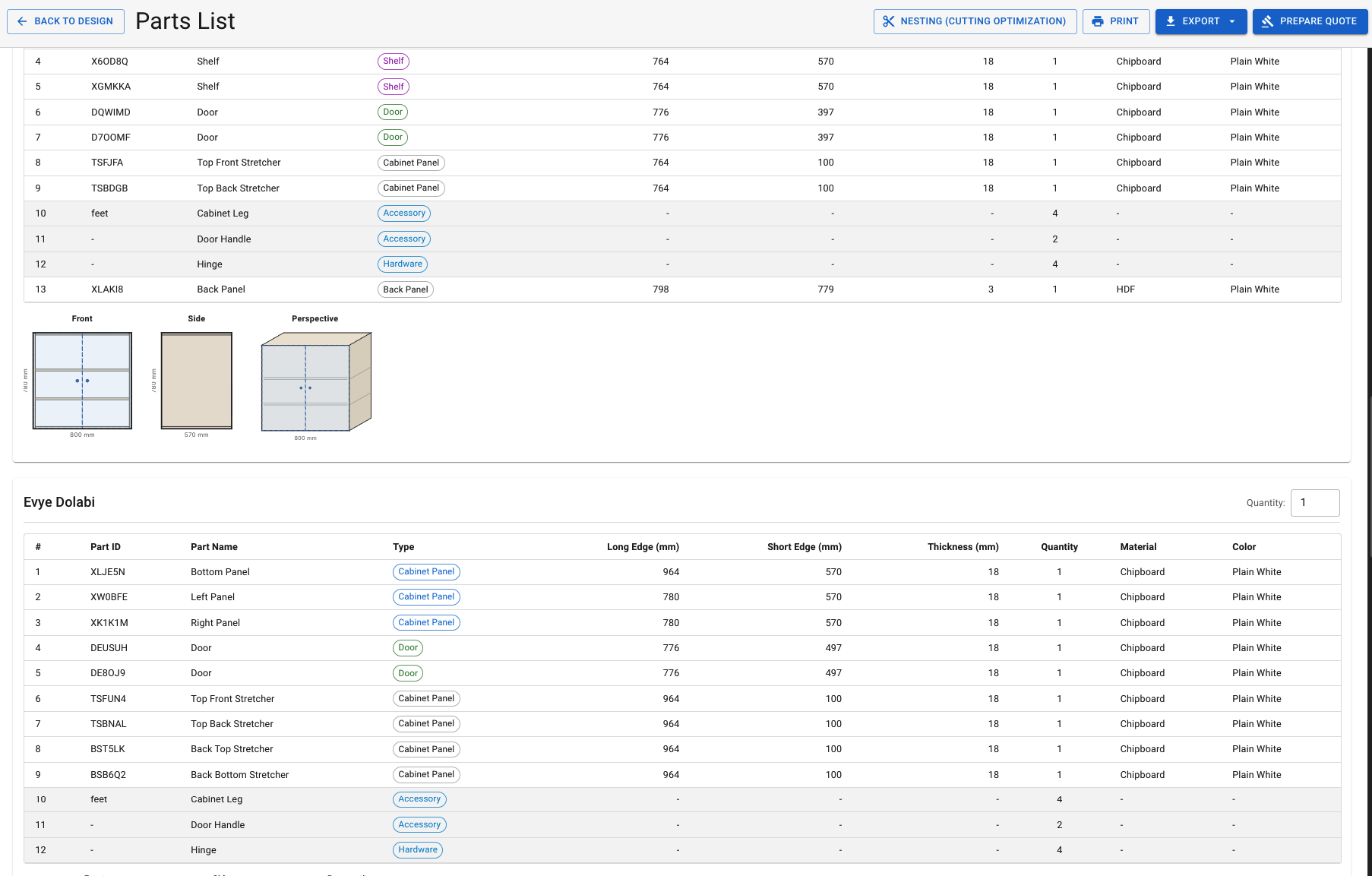
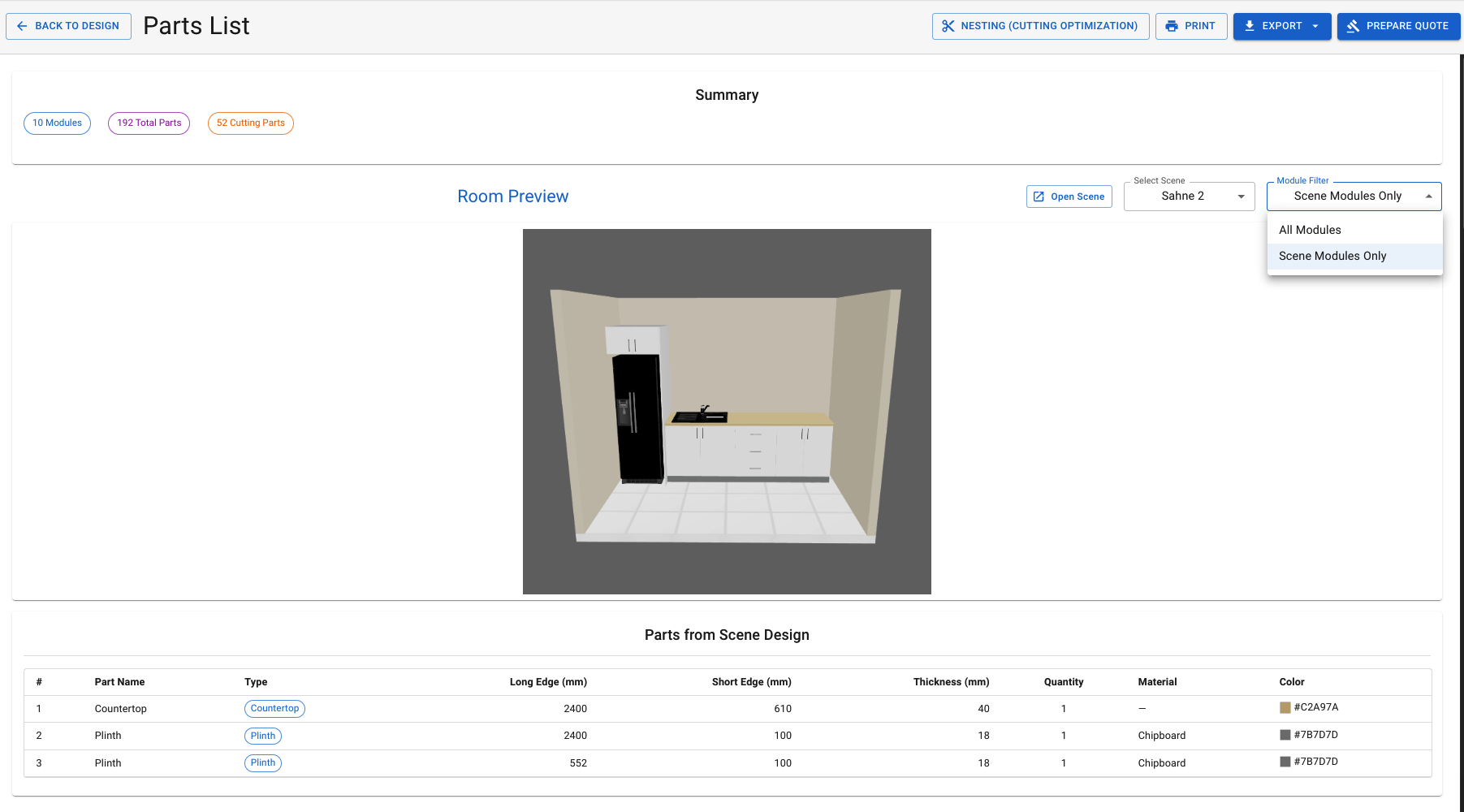
A detailed parts list and cut list is generated automatically for every module you design. Each panel's dimensions, edge banding, and material appear in a single list, ready to go straight to production.
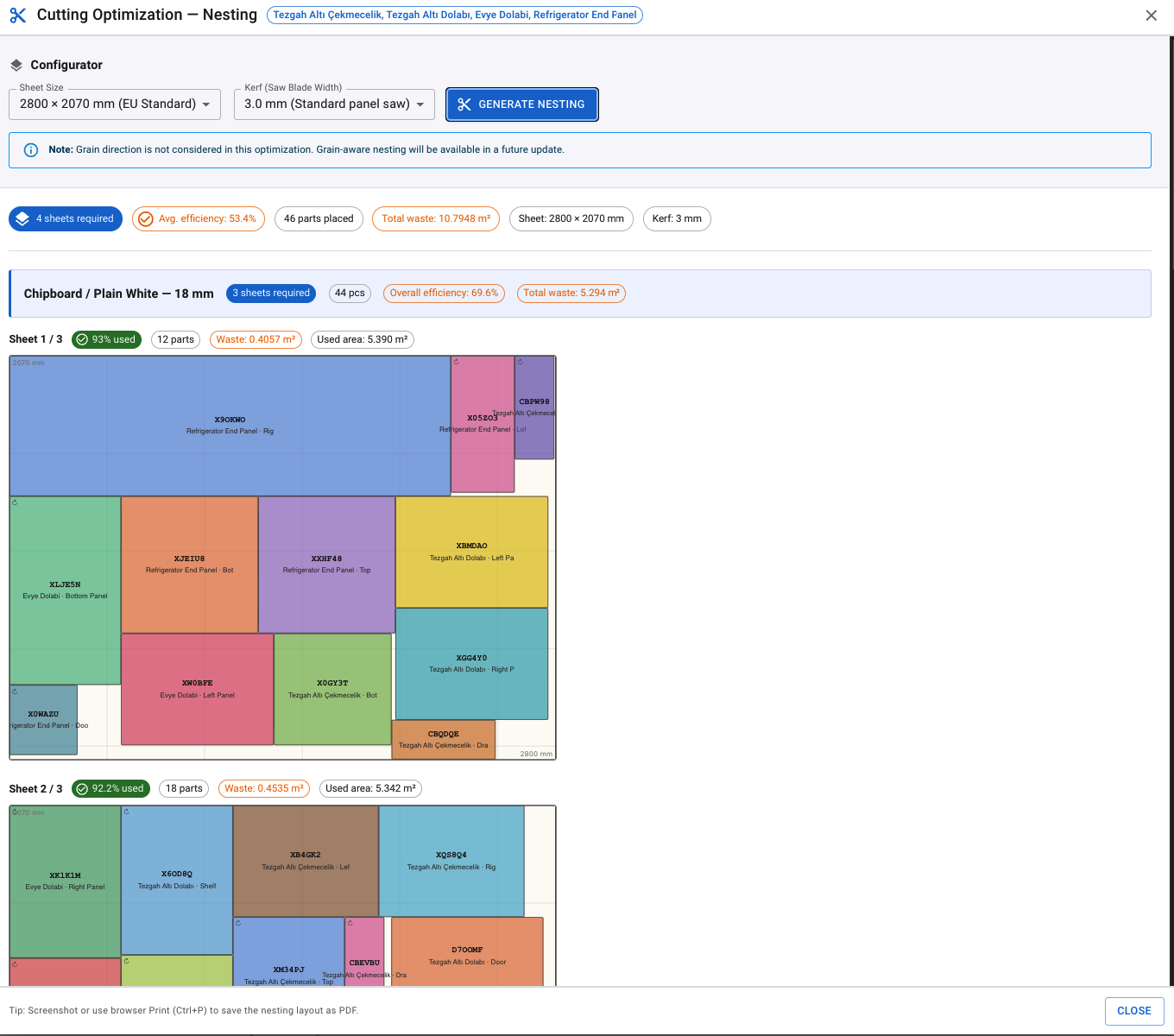
If you're working with multiple scenes, you can also extract measurements for just one specific scene. The nesting feature shows how parts are laid out most efficiently on sheets, and you can export the list to Excel, or to DXF (coming soon).
Store Feature
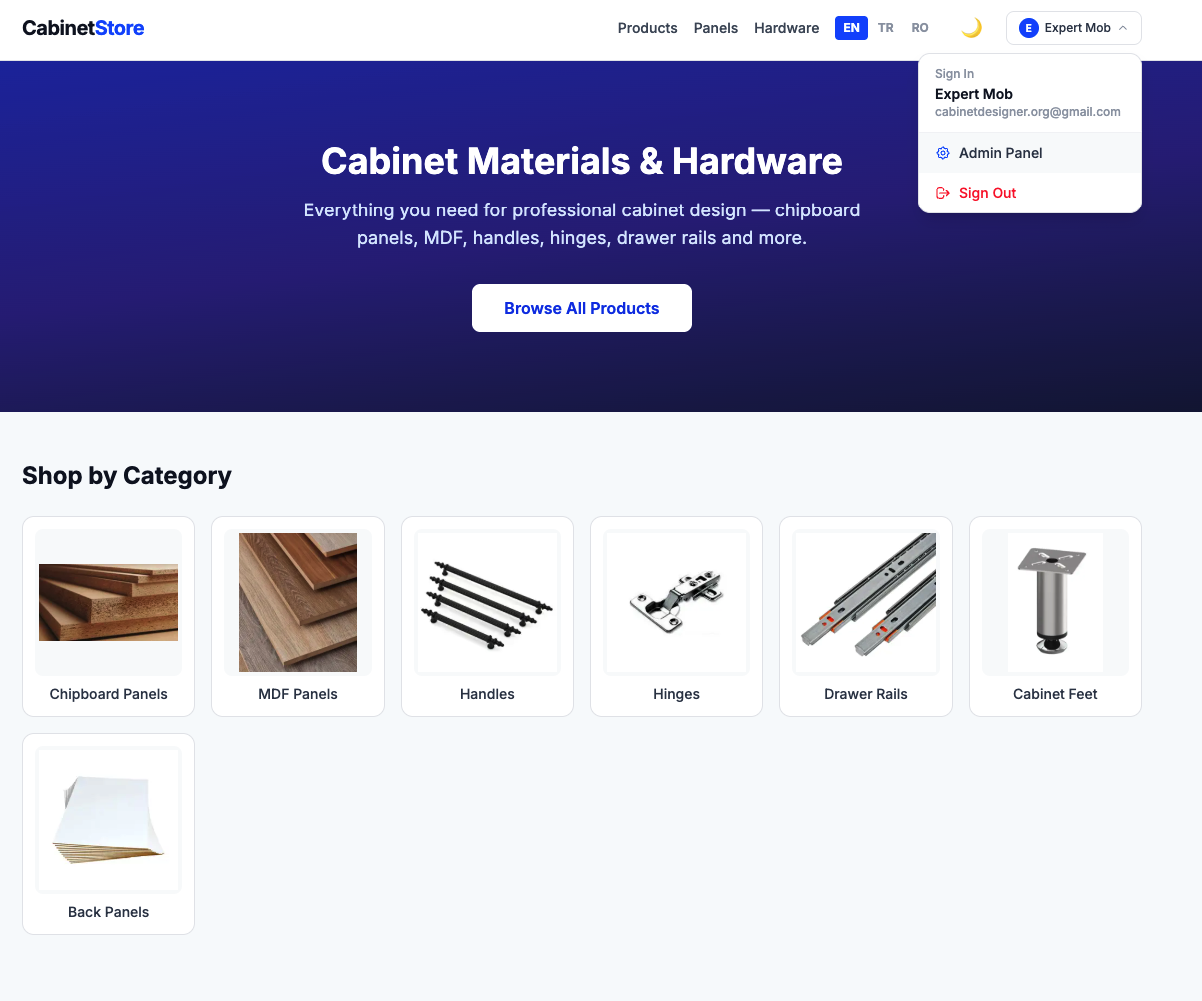
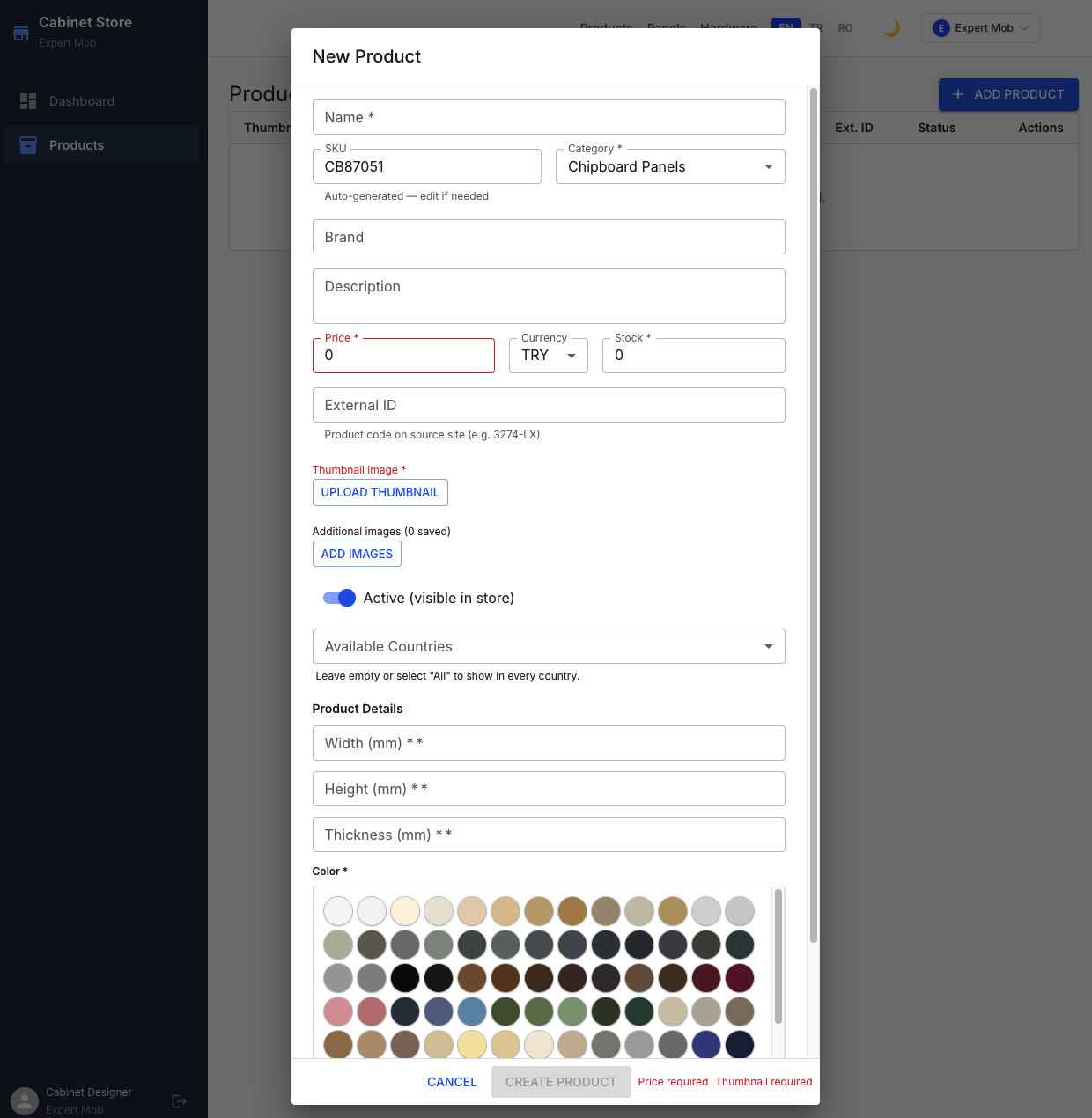
With our store feature built for partners and craftsmen, you can add your own products — body panels, accessories, edge banding and more — and integrate them directly with your modules. That means you can prepare a price quote based on your real products in seconds.
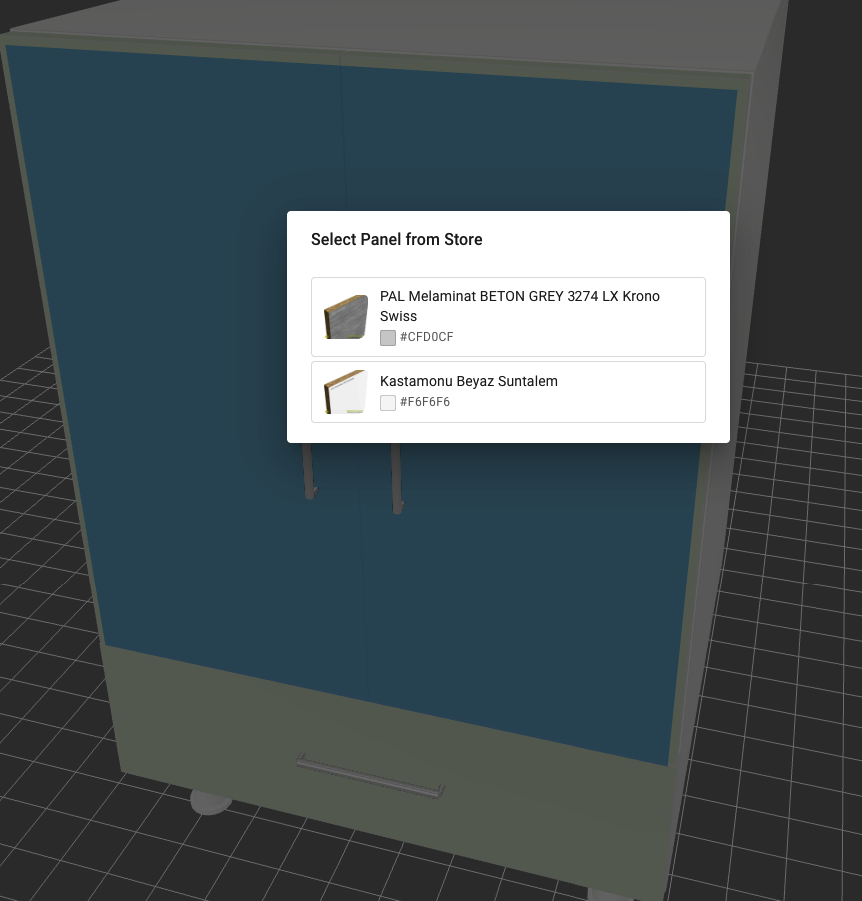
Log in to your store as an admin to add products with ease. For example, when choosing a door material, use "Select from My Store" to apply a product you've already added directly to your model with a single click.